
Configure eduroam with Foxpass
Overview
Foxpass can enable your organization’s users and visiting users from other participating institutions to authenticate to "eduroam" ssid.
This configuration includes two parts:
- Identity Provider (IdP): Allows your users to authenticate to eduroam using Foxpass when they are visiting another participating institution or when in their own institution.
- Service Provider (SP): Allows visiting eduroam users to connect to your network while their authentication is forwarded to their home institution.
This guide walks through configuring the Foxpass RADIUS server, registering the required RADIUS and egress IPs with your eduroam federation, adding upstream eduroam RADIUS servers, configuring visiting-user attributes, and testing both IdP and hotspot connectivity.
Step 1: Create a RADIUS server for eduroam
In the Foxpass Console:
- Go to RADIUS → RADIUS Servers.
- Create a new RADIUS server.
- Open Advanced Options.
- Enable For requests via eduroam servers.
- Save the changes.
Make note of the Server IP Addresses, RADIUS Port, and RADIUS Secret.
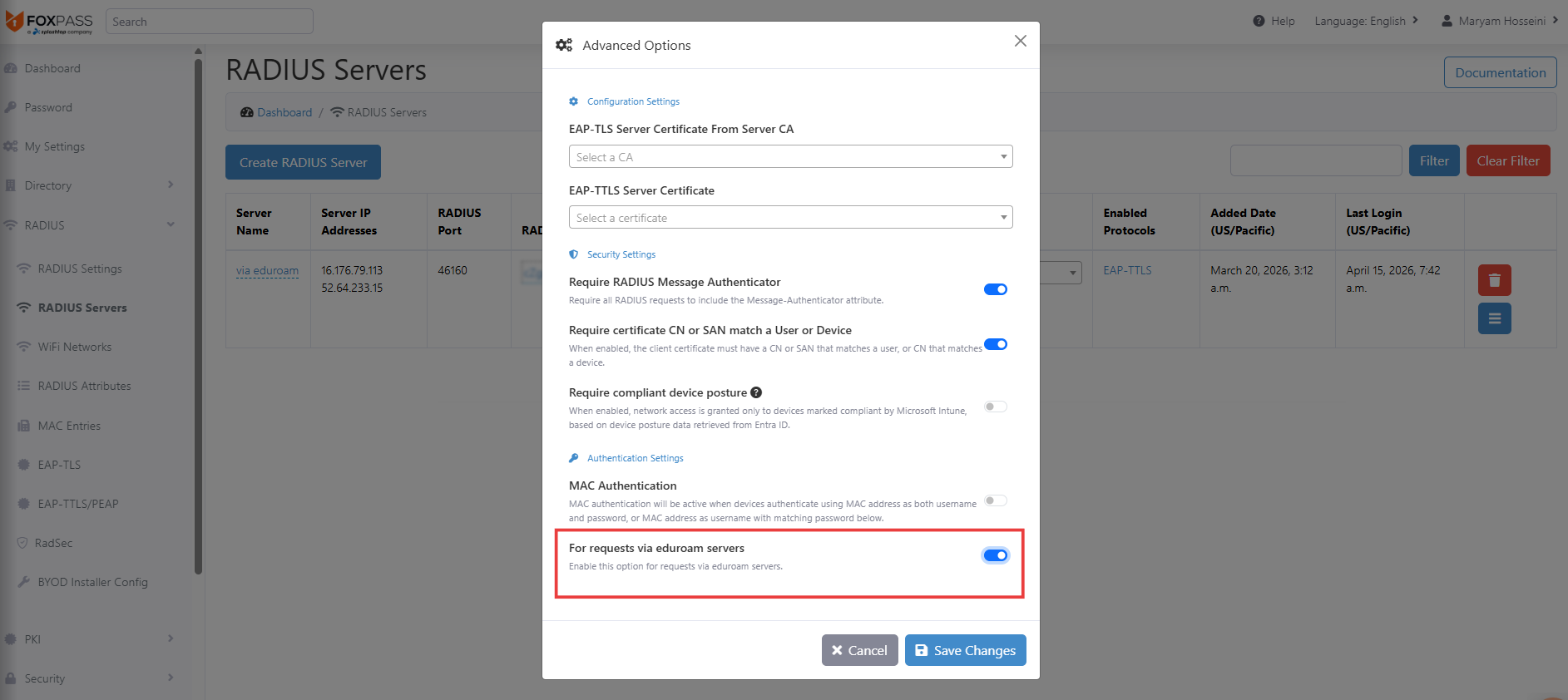
Create a RADIUS server for eduroam in Foxpass console
Step 2: Configure the IdP Realm in eduroam
In the eduroam Federation Manager, go to IdP Realms and add the Foxpass RADIUS servers.
For each server, enter:
- IP Address: Foxpass RADIUS server IP
- Auth Port: The RADIUS port assigned by Foxpass
- Secret: The RADIUS secret assigned to the Foxpass server
Foxpass provides two server IPs, add both for redundancy.
This allows eduroam to forward authentication requests for your users to Foxpass.
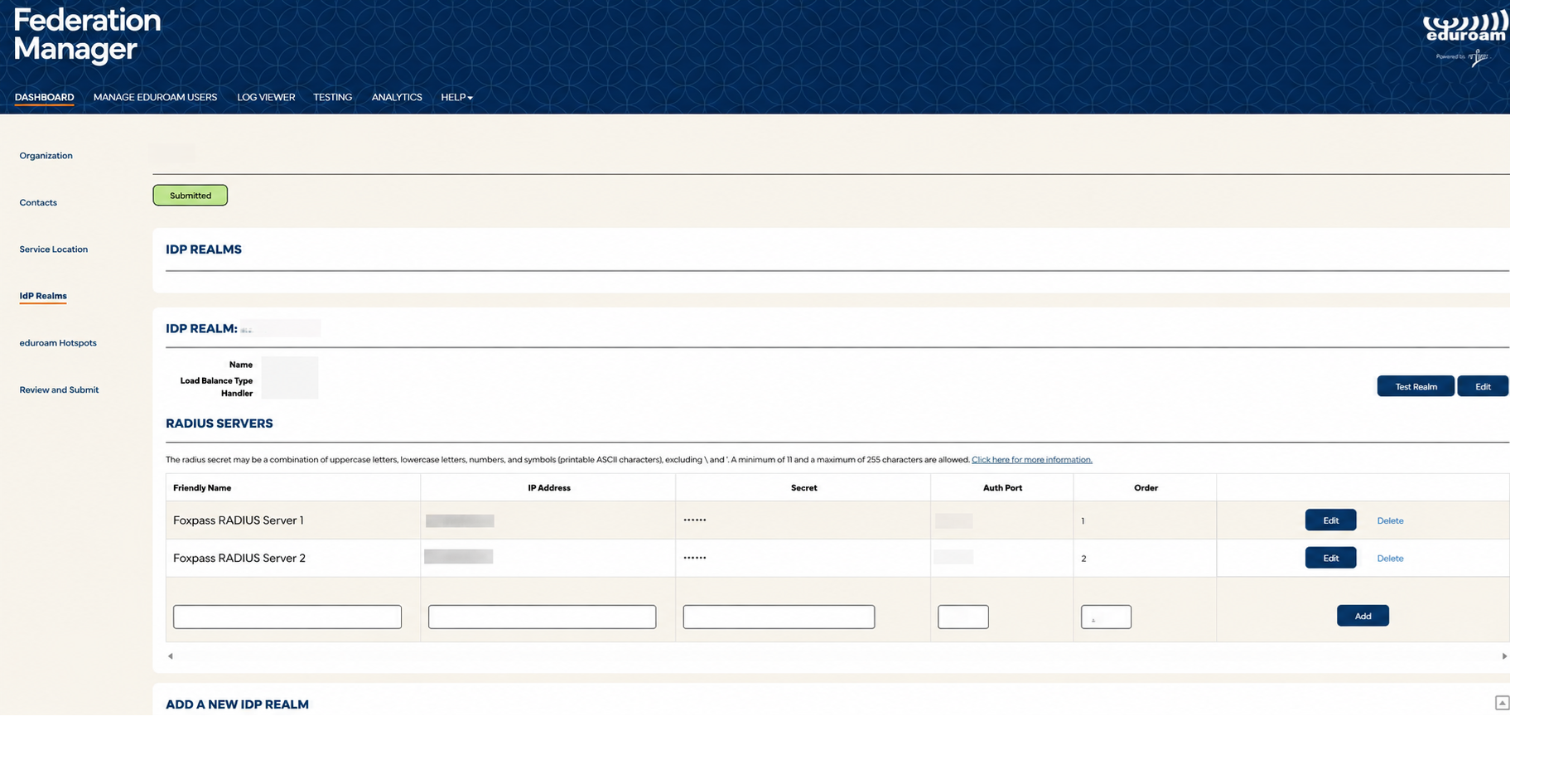
Configure the IdP Realm in eduroam
Step 3: Register the Foxpass egress IPs
For visiting eduroam users, Foxpass sends authentication requests to the eduroam federation.
- In Foxpass, go to RADIUS → Eduroam and locate the Assigned Egress IPs.
- In the eduroam Federation Manager:
- Go to eduroam Hotspots.
- Add each Foxpass egress IP as a Hotspot RADIUS Server.
Enter a Friendly Name for each server, such as:- Foxpass Hotspot RADIUS Server 1
- Foxpass Hotspot RADIUS Server 2
- Create a shared secret for the RADIUS connection.
Important: You will use this same shared secret in Foxpass when adding the upstream eduroam RADIUS servers in Step 4.
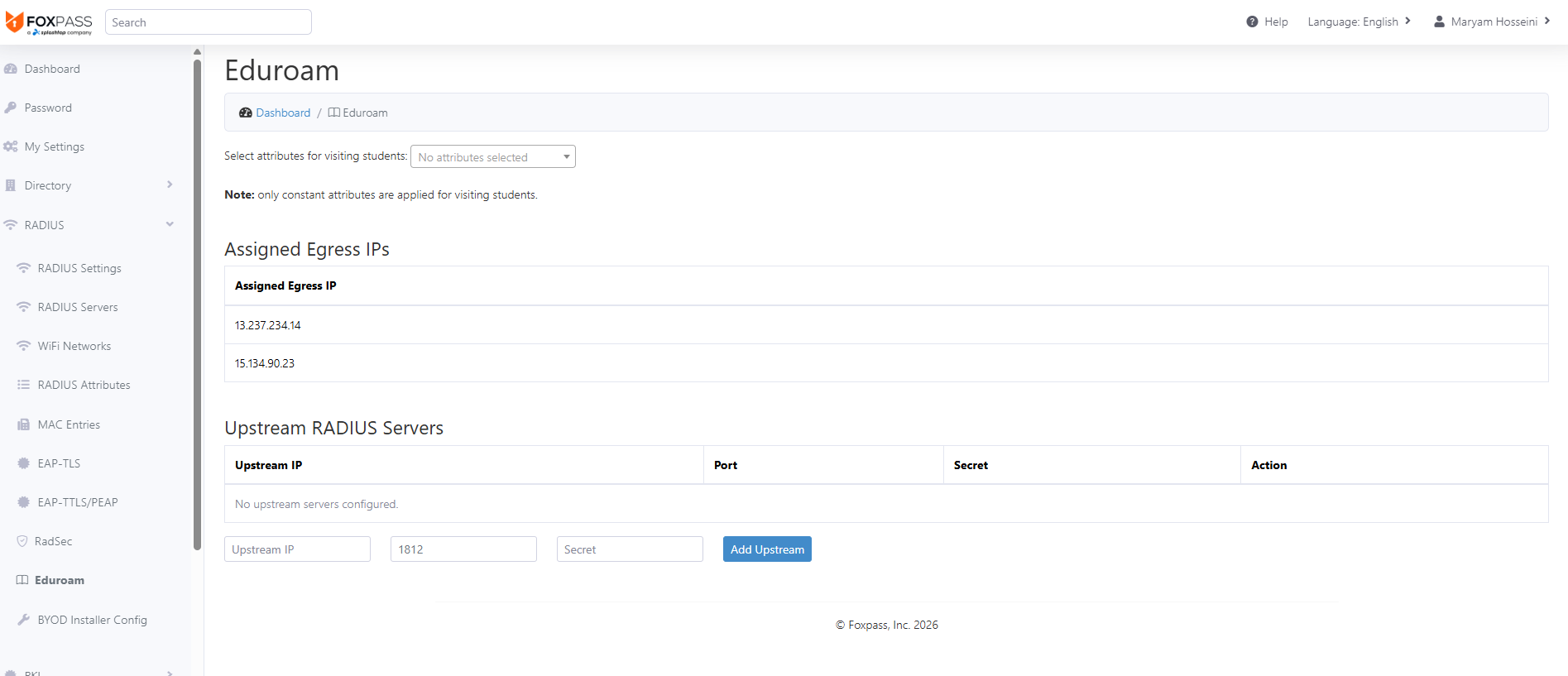
Foxpass egress IPs
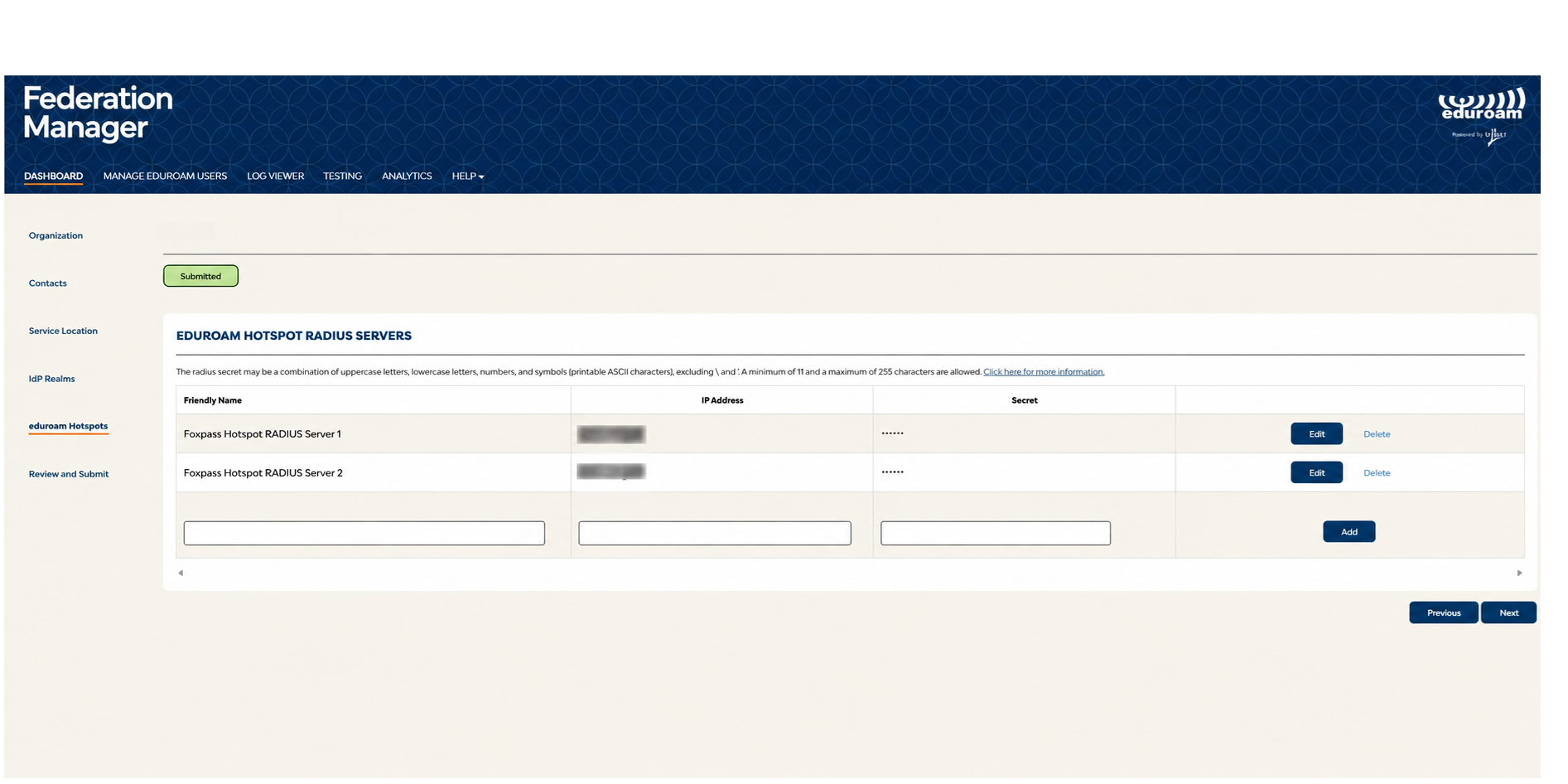
Register the Foxpass egress IPs in Eduroam
Step 4: Add the upstream eduroam RADIUS servers
Obtain the upstream RADIUS server details from your eduroam federation.
In Foxpass:
- Go to RADIUS → Eduroam.
- Under Upstream RADIUS Servers, add the eduroam upstream servers and port.
For Secret, enter the same shared secret you configured for the Foxpass egress IPs in Step 3. - Click Add Upstream for each server.
Foxpass will use these upstream servers to forward authentication requests for visiting eduroam users.
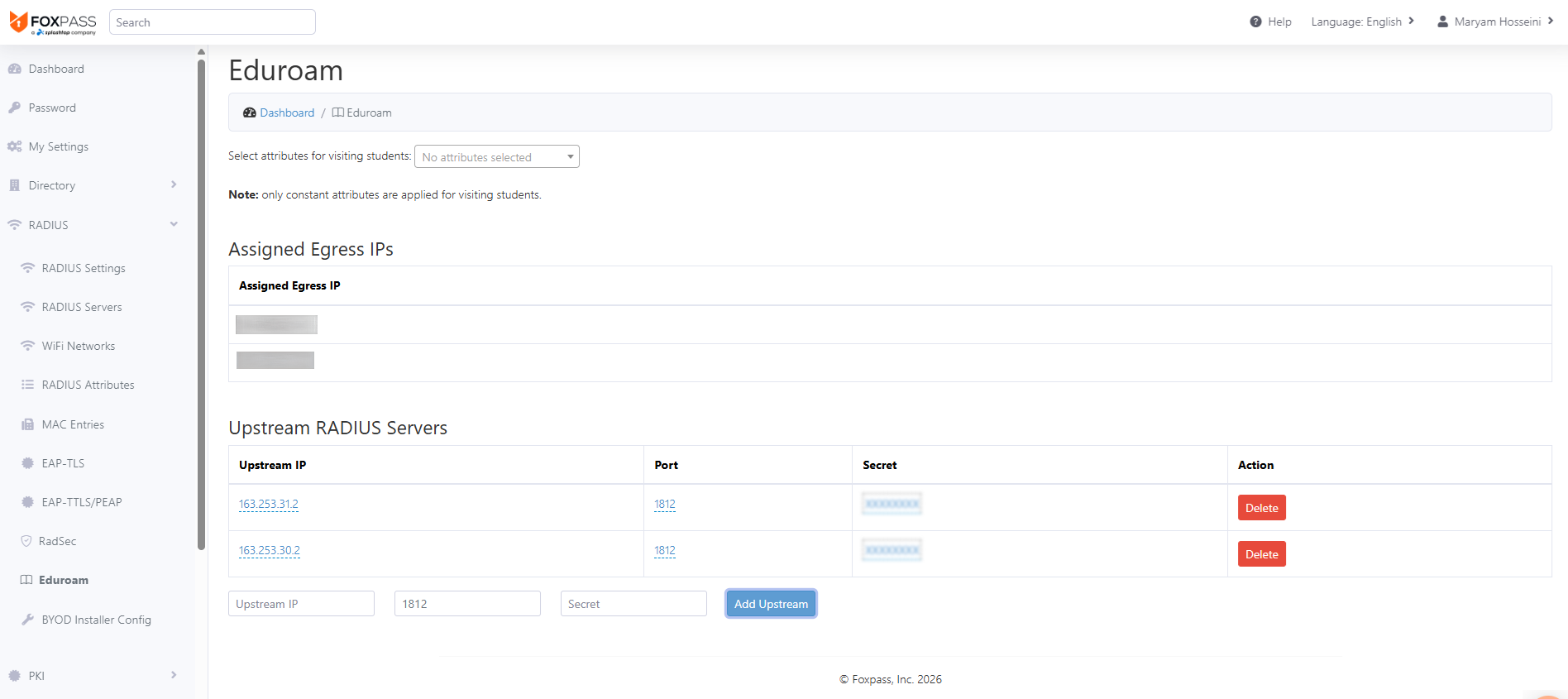
Add the upstream eduroam RADIUS servers
Step 5: Configure visiting-user attributes
If needed, go to RADIUS → Eduroam and select an attribute group under Select attributes for visiting students.
Note: Only constant RADIUS attributes are supported for visiting users.
Step 6: Configure the eduroam SSID
Configure the eduroam SSID on your access point or wireless controller and point it to Foxpass.
You have a few options for configuring the RADIUS connection:
- Standard RADIUS: Go to RADIUS → RADIUS Settings, add the public IP address of your access point or controller, and use the Foxpass server IPs, port, and shared secret shown there.
- Virtual RADIUS Server: Go to RADIUS → RADIUS Servers and create a virtual RADIUS server. Foxpass will provide server IPs, a unique port, and a shared secret to use in your SSID configuration.
- RadSec: If your access points support RadSec, you can configure the SSID using the settings under RADIUS → RadSec instead of standard UDP RADIUS.
Once the SSID is configured, authentication requests will be sent to Foxpass, which will either authenticate your own users or forward visiting eduroam users to the upstream eduroam servers.
Test the eduroam Configuration
The eduroam Federation Manager provides separate tests for the IdP Realm and eduroam Hotspot.
Test the IdP Realm
Go to Testing → Test IdP Realm(s).
- Select the authentication method you want to test, such as EAP-PEAP, EAP-TTLS, or EAP-TLS.
- Enter a test username for your configured realm.
- Enter the password when required.
- Click Test.
The test simulates one of your users authenticating through the eduroam infrastructure to Foxpass.
Review the Sent Requests section for the result. A successful test should show the request as received and the eduroam proxy results as OK.
You can also review the RADIUS logs in Foxpass to confirm that the authentication request reached Foxpass.
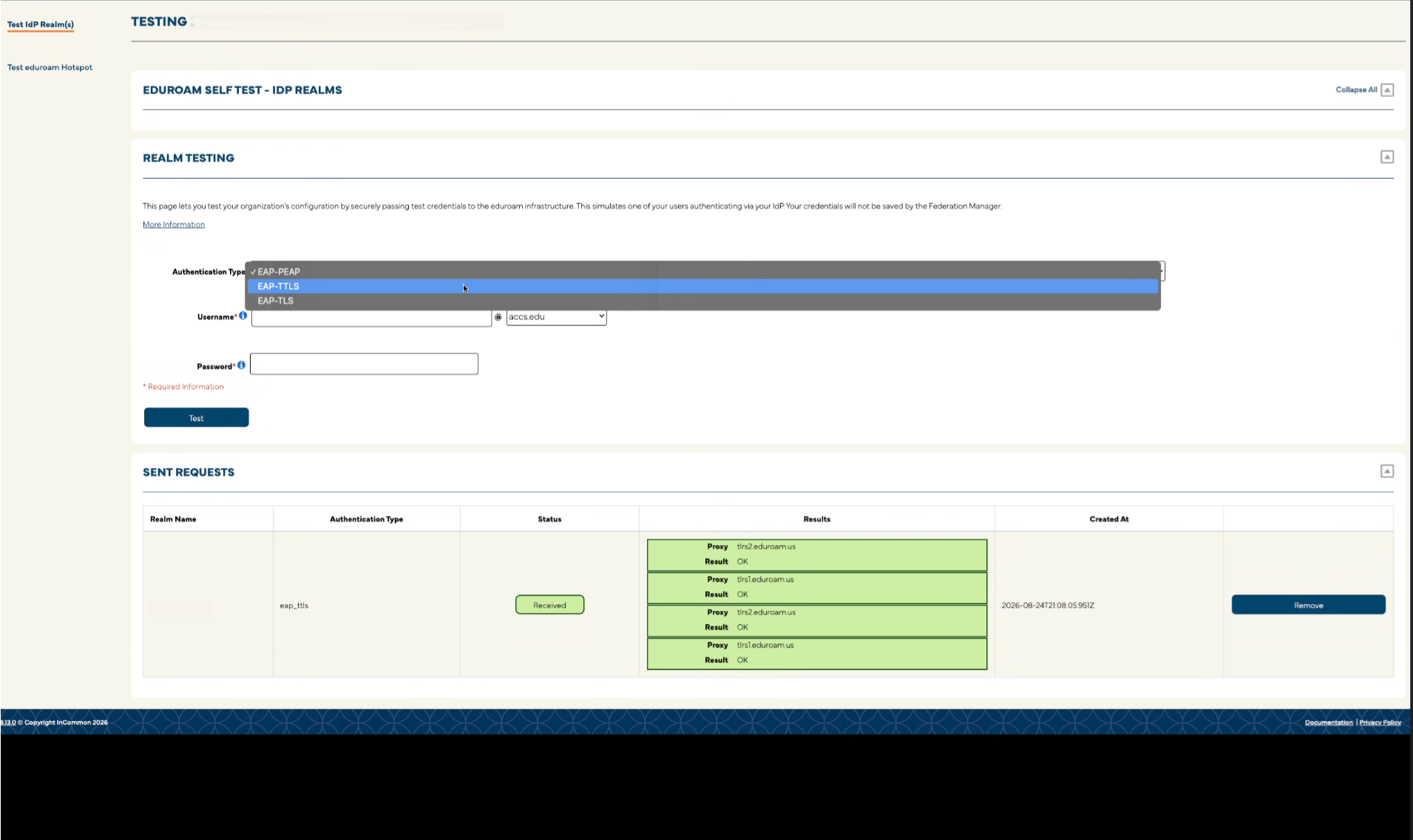
Test the IdP Realm
Test the eduroam Hotspot
Go to Testing → Test eduroam Hotspot.
The Federation Manager can generate a temporary certificate and installation package for testing the hotspot.
- Request a test certificate.
- Download the certificate once it is ready.
- Download the appropriate installation package for your device.
- Install the test configuration.
- Connect the device to the eduroam SSID.
The test certificate is temporary and is intended only for validating the hotspot configuration.
A successful hotspot test confirms that requests from a visiting eduroam user can travel through Foxpass to the eduroam federation.
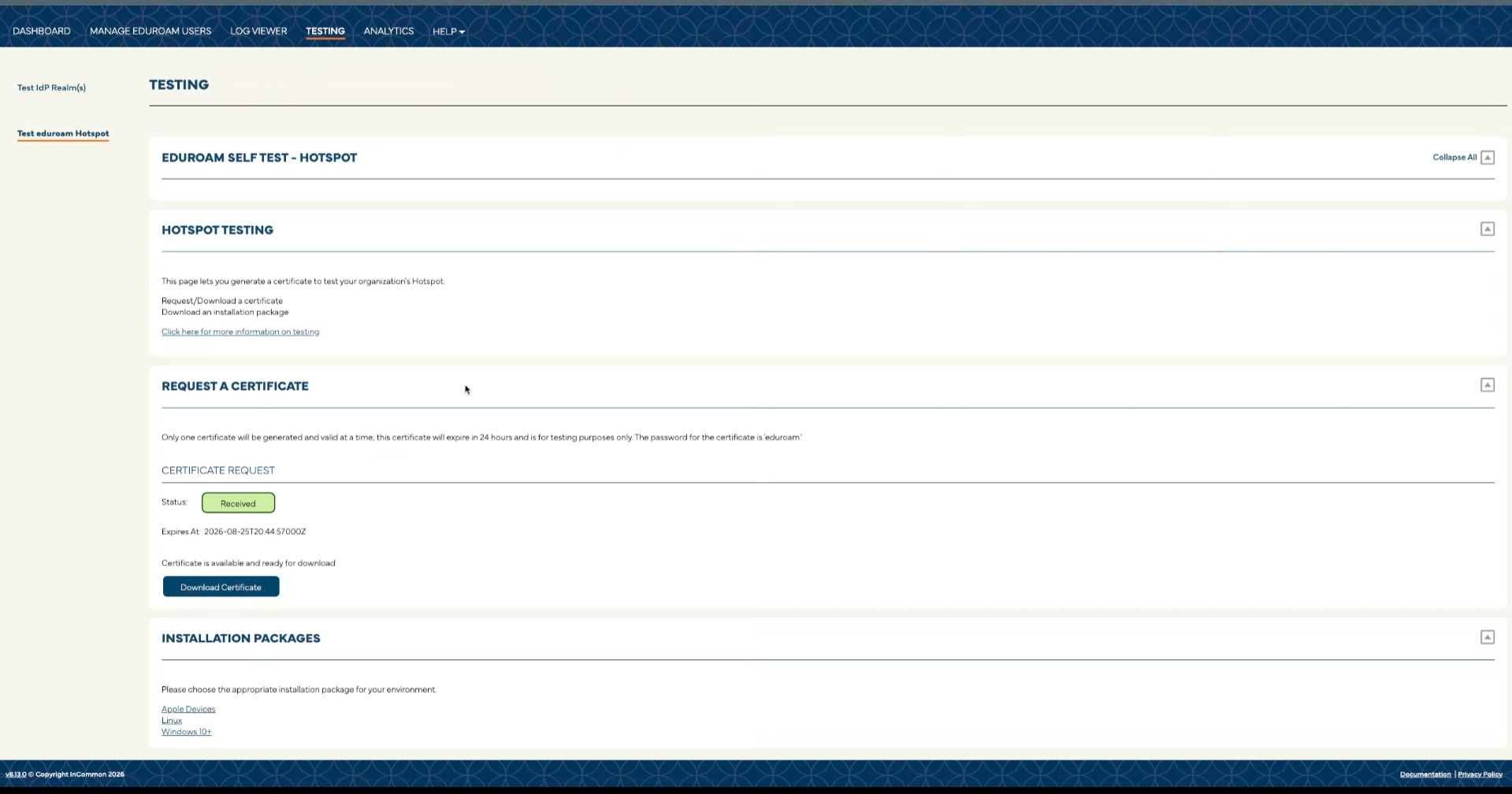
Test the eduroam Hotspot
Final Verification
Before completing the setup, confirm that the Federation Manager shows:
-
Your Foxpass servers under IdP Realm RADIUS Servers
-
Your Foxpass egress IPs under Hotspot RADIUS Servers
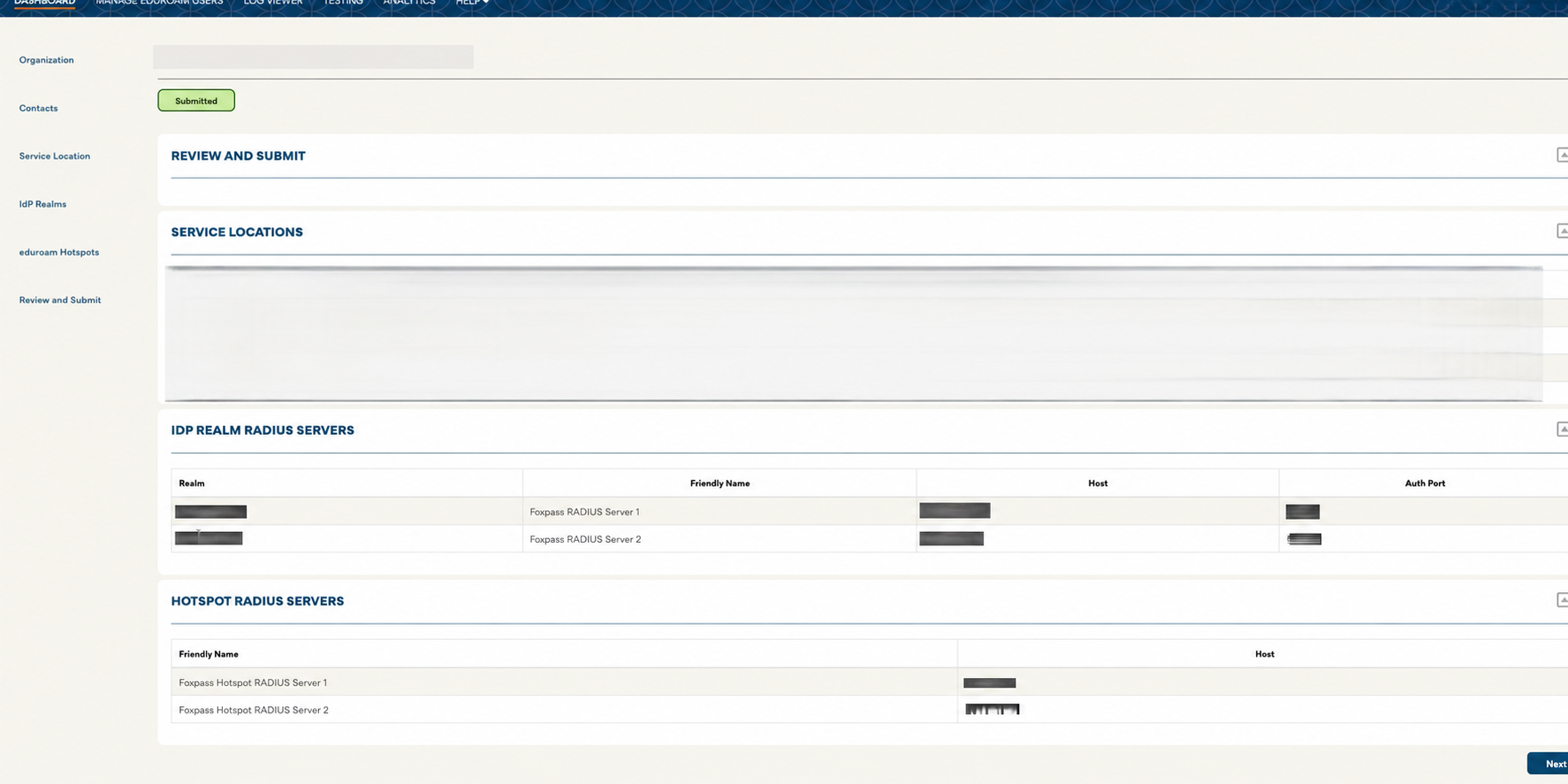
Final Verification
Then test both a home-user authentication and a visiting-user authentication.
Updated 2 months ago