
Chromebook SCEP Certificate Authority Configuration
This guide describes how to configure automatic certificate provisioning for ChromeOS devices using Foxpass SCEP and Google's Certificate Provisioning API, enabling passwordless EAP-TLS Wi-Fi authentication
Chromebook Enterprise License
- Buy the Chromebook Enterprise license as required via your Google Workspace here
Step 1: Configure EAP-TLS on Foxpass
- Please follow the EAP-TLS initial setup guide to create Client CA and Server CA. Download both.
Step 2: Create a SCEP endpoint
Go to the Foxpass Console's SCEP page, click on Create SCEP endpoint.
-
Name - Give a name to your endpoint. (E.g., Google SCEP)
-
Verification Type – None
-
Authentication Type - Challenge Password
-
Client Certificate Authority - Created in the EAP-TLS initial setup guide
-
Click 'Create' button.
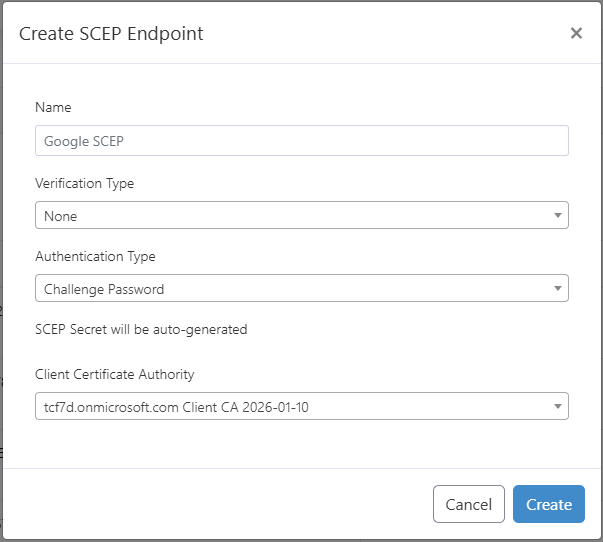
Create a SCEP endpoint
Step 3: Upload Client CA and Server CA Certificates
Upload the Client CA
Add Client CA in your Google Workspace here:
Device > Networks > Certificates > Server Certificate Authority certificates.
Click Add Certificate. Name it "Foxpass Client CA". Click Upload. Upload the client CA downloaded earlier. Check the following options and then click 'ADD'.
- Enabled for Chromebook
- Enabled for Imprivata App on Chromebooks
- Enabled for Endpoint Verification
Upload the Server CA
Add Server CA in your Google Workspace here:
Device > Networks > Certificates > Server Certificate Authority certificates.
Click Add Certificate. Name it "Foxpass Server CA". Click Upload. Upload the server CA downloaded earlier. Check the following options and then click 'ADD'.
- Enabled for Chromebook
- Enabled for Imprivata App on Chromebooks
- Enabled for Endpoint Verification
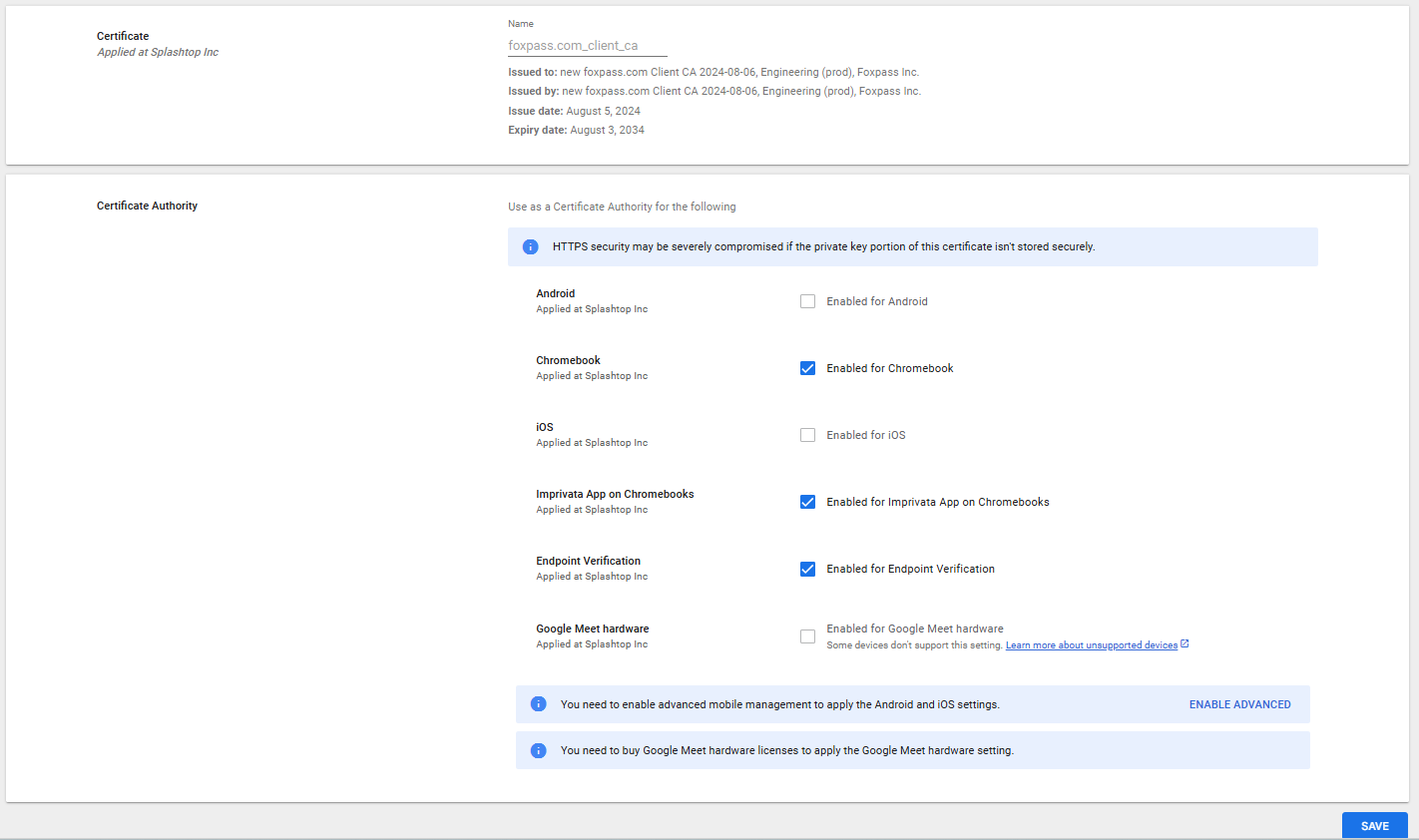
Client CA Certificate
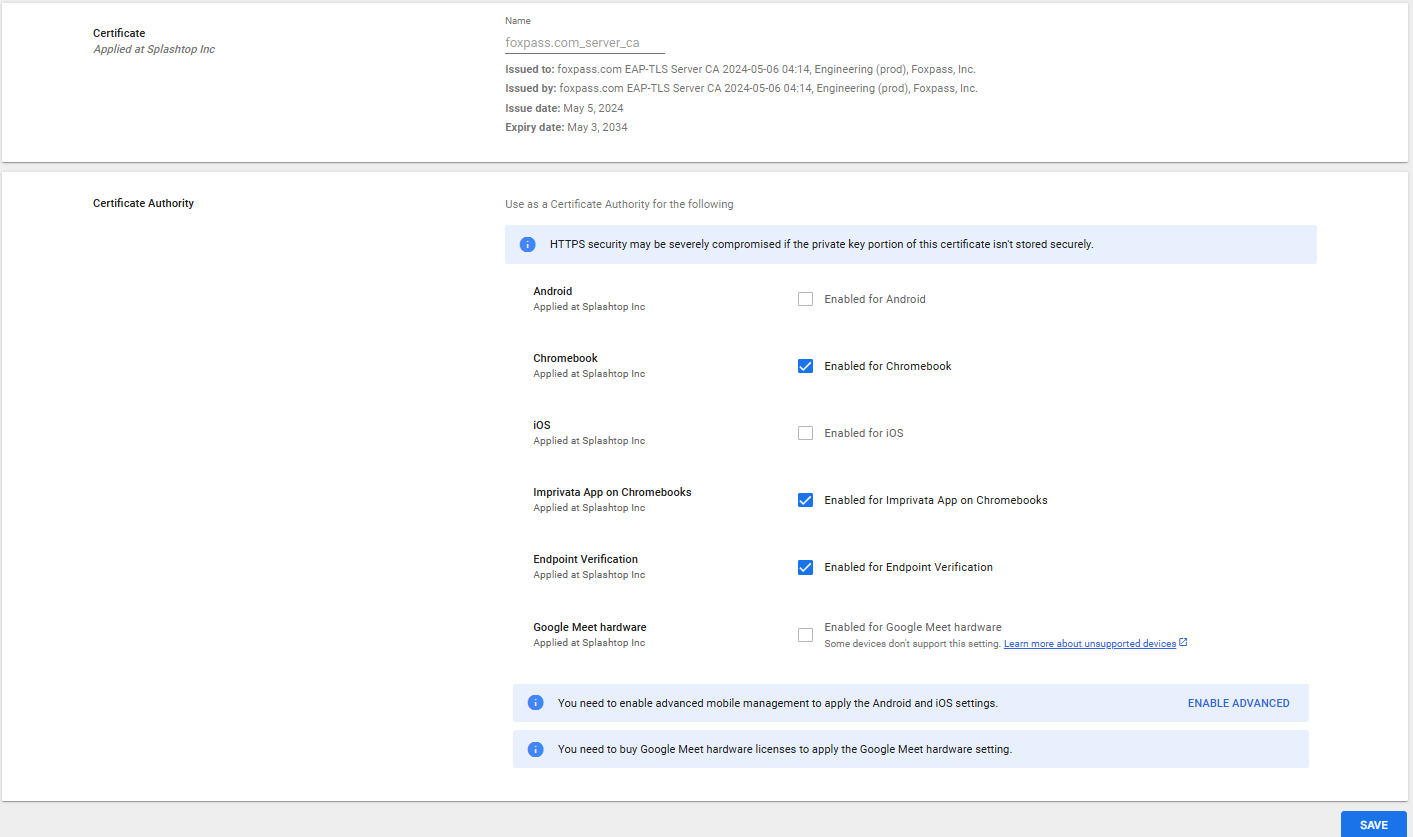
Server CA Certificate
Step 4: Add Certificate Authority connection
Add the connection here Networks > Certificates > Certificate Authority connection.
Note: The Certificate Authority connection can only be done in the Root OU
- Click Add Connection
GUID – Generated after profile is saved
- Certificate Authority connection type – SCEP Certificate Authority connection
- Certificate Authority connection name – Foxpass Google SCEP
- Service account -
cert-prov-sa@certificate-provisioning-prod.iam.gserviceaccount.com - Pub/Sub topic:
Select one (1) based on your region:- Global Stack (foxpass.com):
projects/certificate-provisioning-prod/topics/cert-prov-use-1 - EU Stack (foxpass.eu):
projects/certificate-provisioning-prod/topics/cert-prov-euc-1 - AU Stack (au.foxpass.com):
projects/certificate-provisioning-prod/topics/cert-prov-ap-se-2
- Global Stack (foxpass.com):
-
Certificate Authority connection configuration identifier – Input SCEP UUID of the domain that's created in the SCEP Page.
-
Click Add
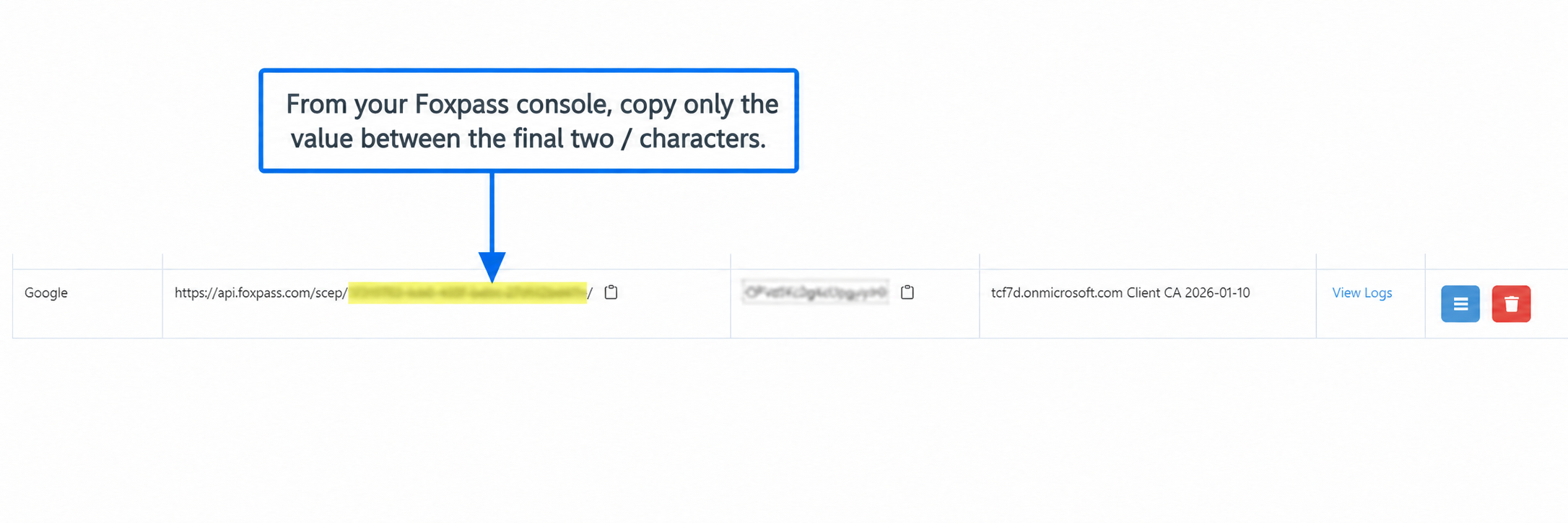
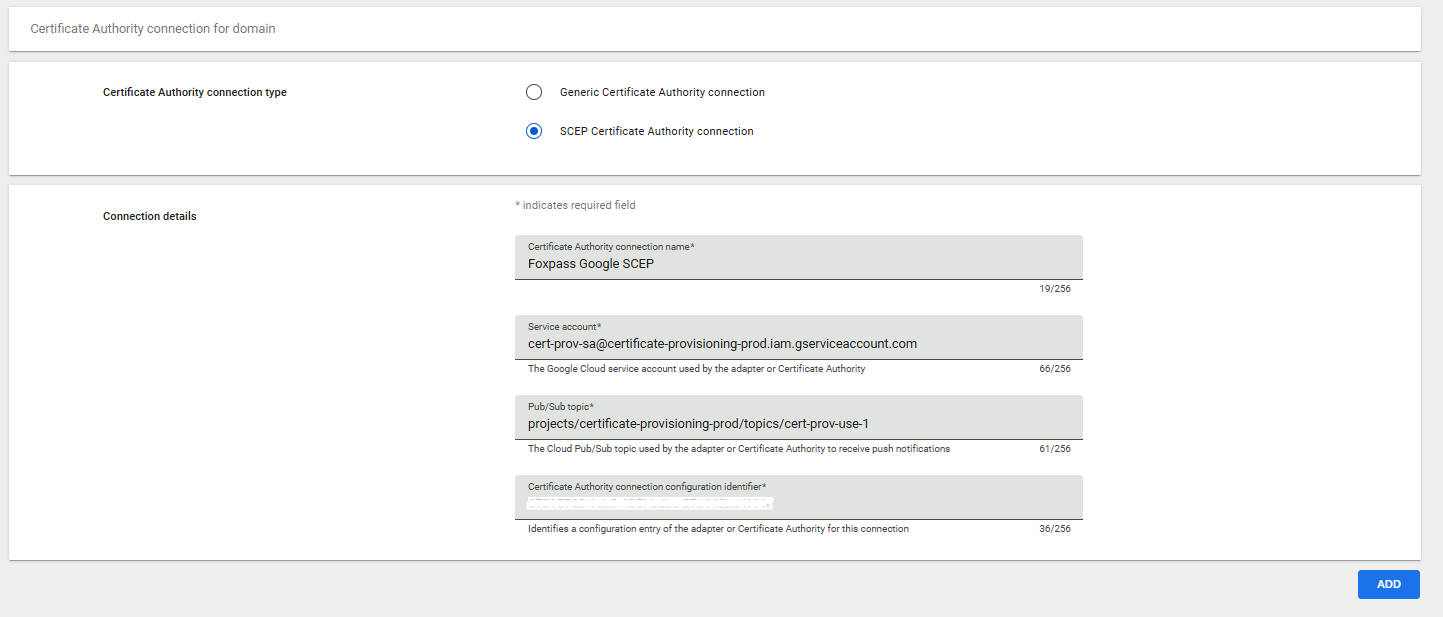
Add Certificate Authority connection
Choose a Certificate Type
Select one of the following:
- Device-based: Identifies the Chromebook. Configure the profiles under Chromebooks (by Device).
- User-based: Identifies the signed-in user. Configure the profiles under Chromebooks (by User).
The certificate provisioning and Wi-Fi profile types must match.
Step 5: Add Certificate Provision Profile
In the Google Admin console, go to:
Devices > Networks > Certificates > Certificate Provisioning Profiles
Create either a device-based or user-based certificate provisioning profile.
Option A: Device-Based Certificate Provisioning
Use this option when the certificate should identify the Chromebook rather than an individual user.
- Select the organizational unit containing the managed Chromebooks.
- Click Add Profile.
- Configure the following settings:
- Referenced Certificate Authority Connection: Select the Foxpass SCEP connection created in Step 4.
- Platform Access: Enable Chromebooks (by Device).
- GUID: Generated automatically after the profile is saved.
- Certificate provisioning profile name:
Foxpass Chromebook SCEP - Device - Days before expiration to initiate renewal:
30 - Authentication type: None
- Key Usage:
-
Enable Key Encipherment
-
Enable Signing
-
- Subject Common Name:
${DEVICE_DIRECTORY_API_ID} - Encryption Key Type:
RSA Key – 2048 bit - Click Add.
Assign the profile to the organizational unit containing the Chromebooks that should receive device certificates.
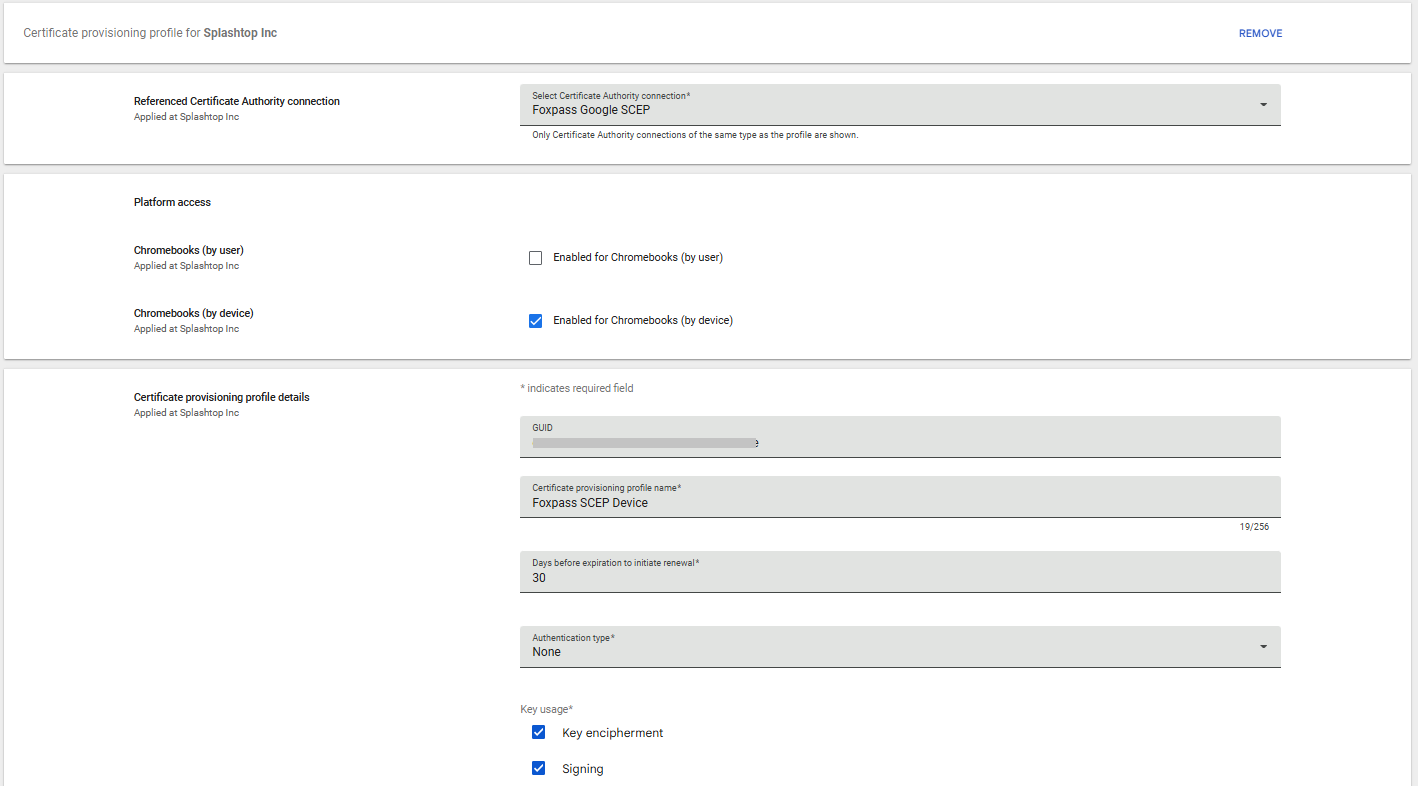
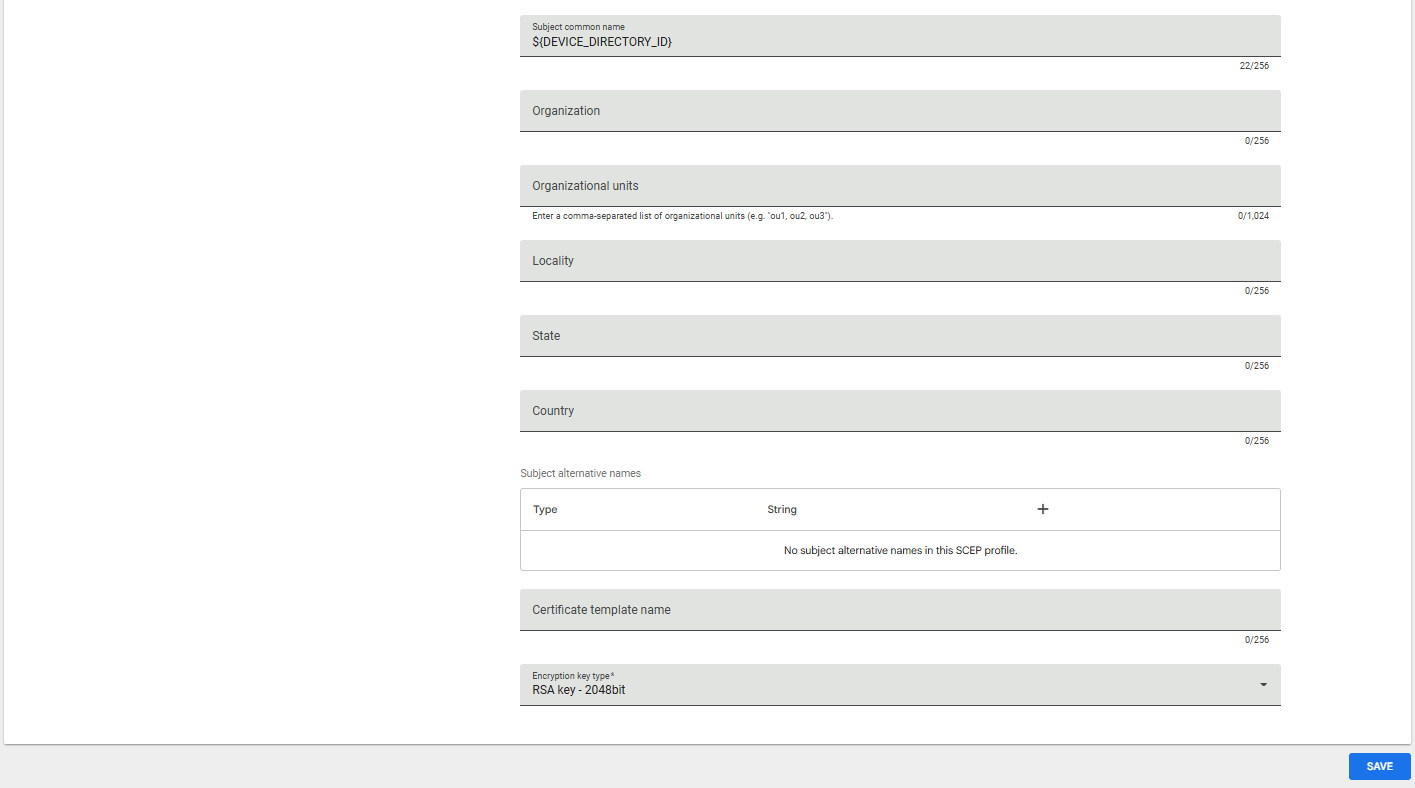
Option A: Device-Based Certificate Provisioning
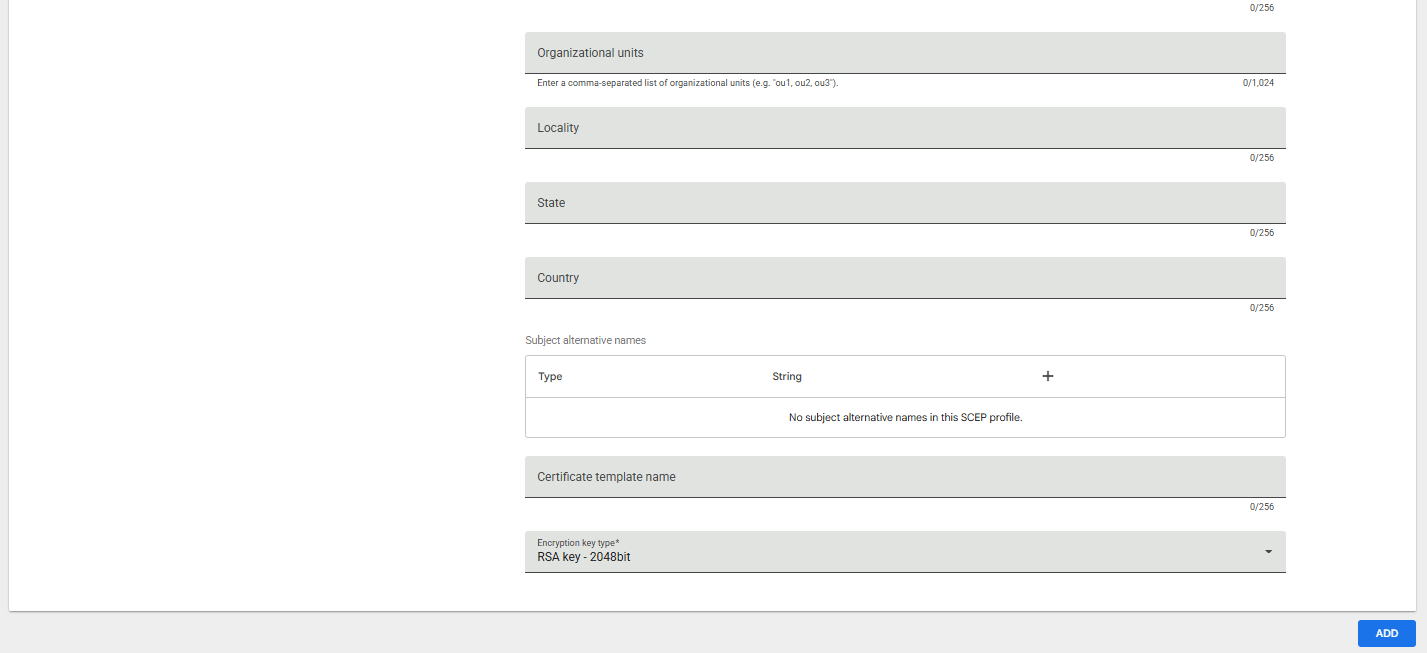
Option B: User-Based Certificate Provisioning
Use this option when each signed-in user should receive an individual certificate.
- Select the organizational unit or user group containing the users who should receive certificates.
- Click Add Profile.
- Configure the following settings:
- Referenced Certificate Authority Connection: Select the Foxpass SCEP connection created in Step 4.
- Platform Access: Enable Chromebooks (by User).
- GUID: Generated automatically after the profile is saved.
- Certificate provisioning profile name:
Foxpass Chromebook SCEP - User - Days before expiration to initiate renewal:
30 - Authentication type: None
- Key Usage:
-
Enable Key Encipherment
-
Enable Signing
-
- Subject Common Name:
${LOGIN_EMAIL} - Encryption Key Type:
RSA Key – 2048 bit - Click Add.
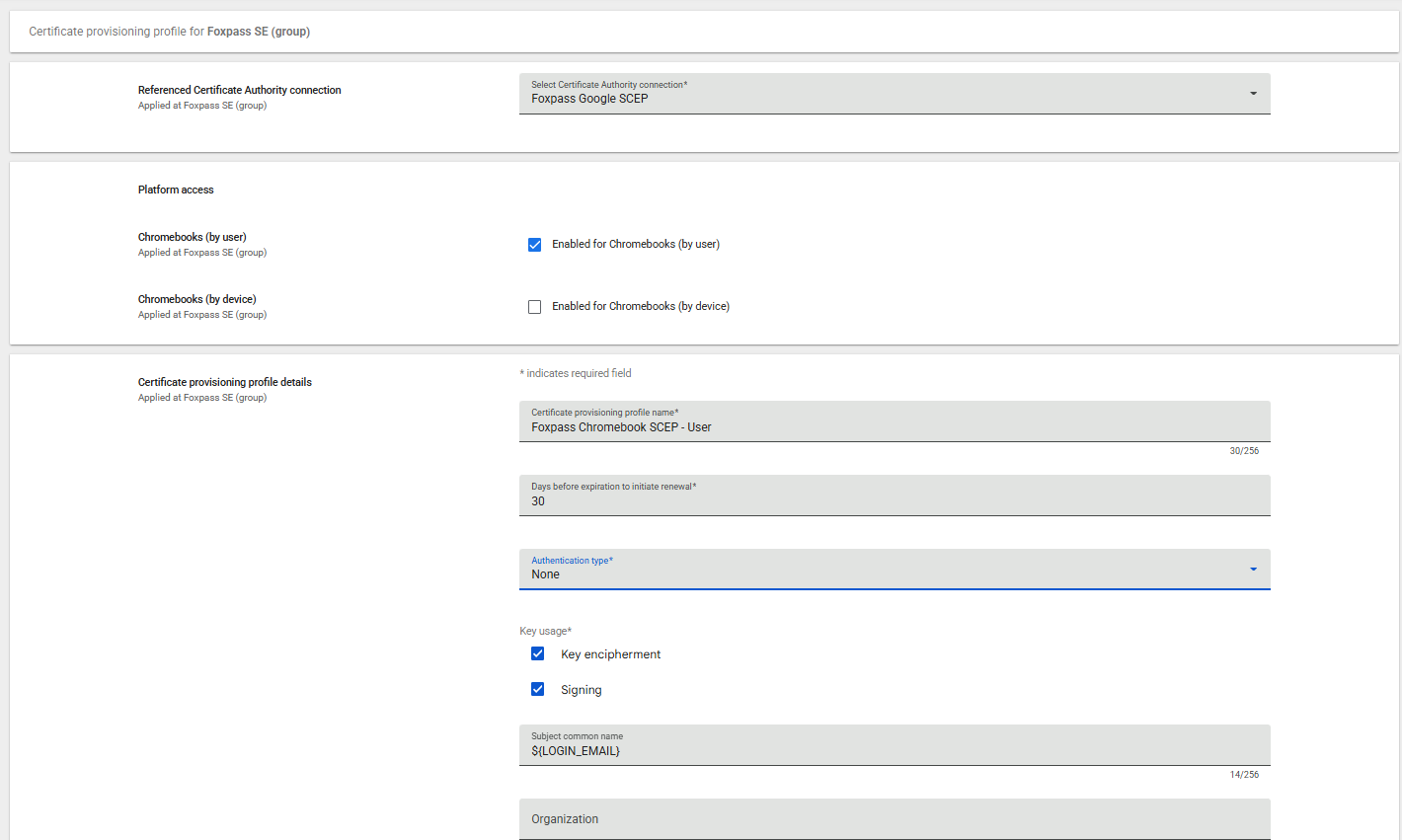
Option B: User-Based Certificate Provisioning
Step 6: Add Wi-Fi Profile
In the Google Admin console, go to:
Devices > Networks > Wi-Fi
The Wi-Fi profile must match the certificate provisioning profile created in Step 5.
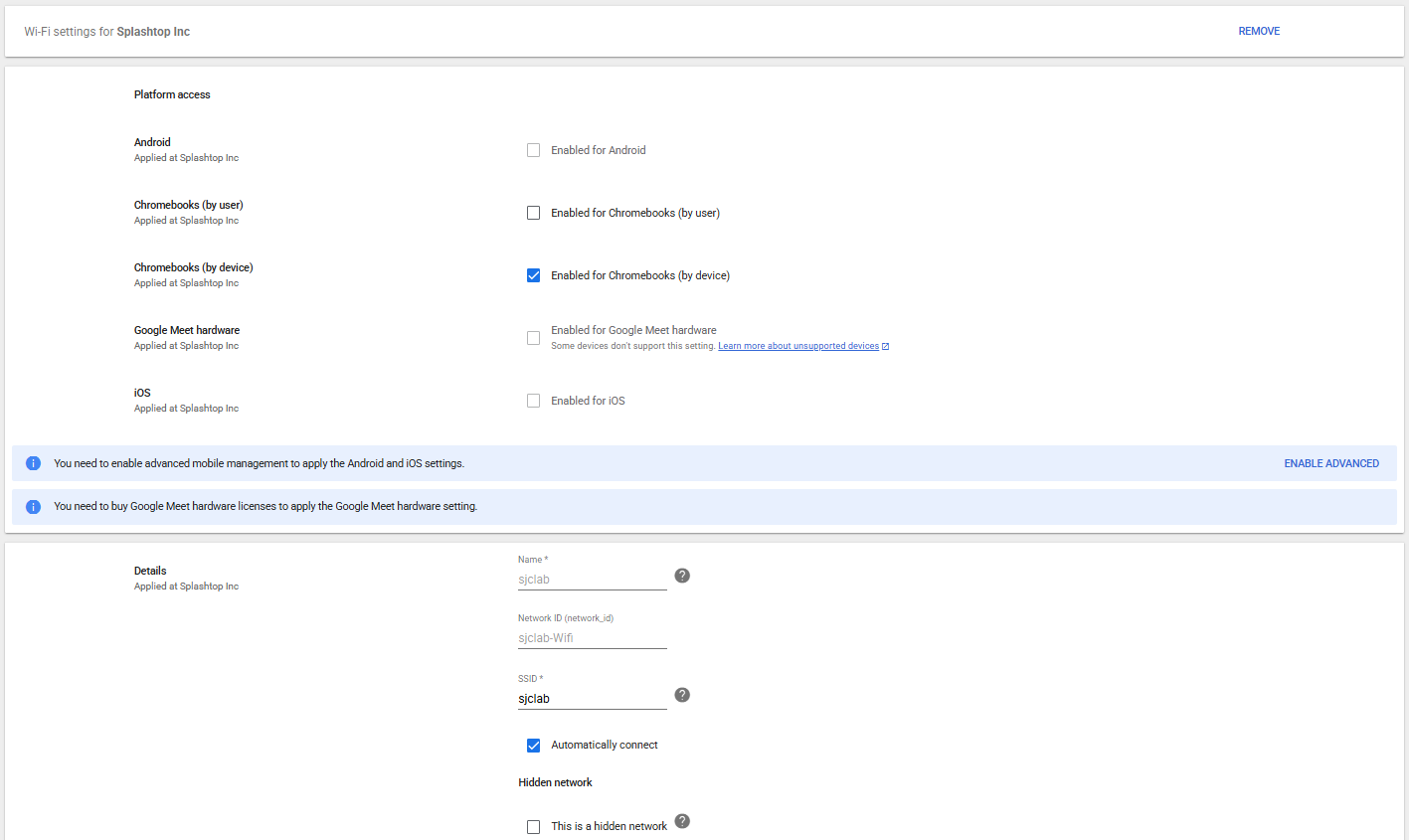
Option A: Device-Based Wi-Fi Profile
Use this configuration with the device-based certificate provisioning profile.
- Click Add Wi-Fi.
- Select Chromebooks (by Device).
- Configure the following settings:
- Name:
"Your SSID"-Foxpass-Device - Network:
"Your SSID" - SSID: Enter the SSID exactly as configured on your wireless network.
- Automatically Connect: Enabled
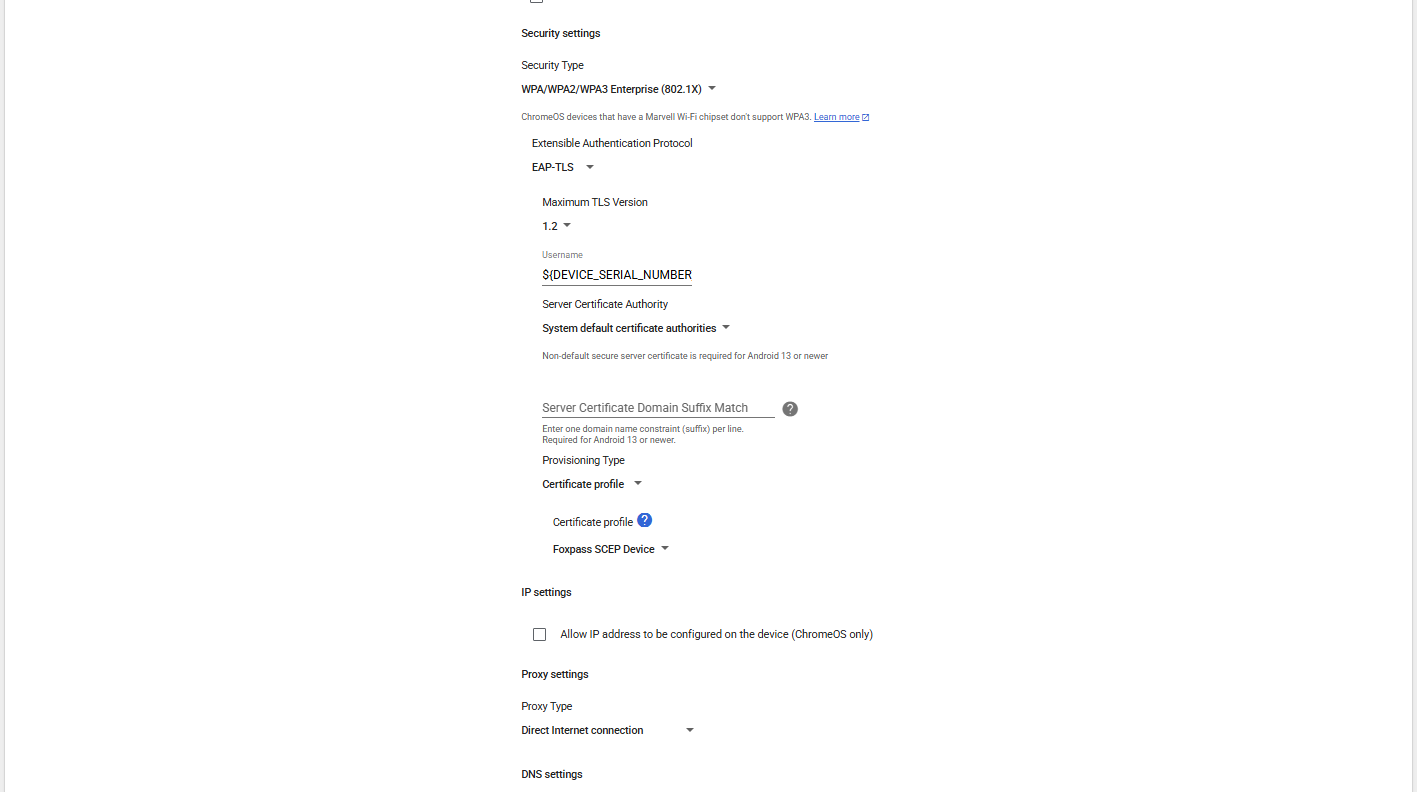
- Security Type:
WPA/WPA2/WPA3 Enterprise (802.1X) - Extensible Authentication Protocol:
EAP-TLS - Maximum TLS Version:
1.2 - Username:
${DEVICE_SERIAL_NUMBER}
Alternatively, use${MAC_ADDRESS} - Server Certificate Authority: Select
Foxpass Server CA. - Provisioning Type:
Certificate profile - Certificate Profile: Select
Foxpass Chromebook SCEP - Device. - Proxy Type:
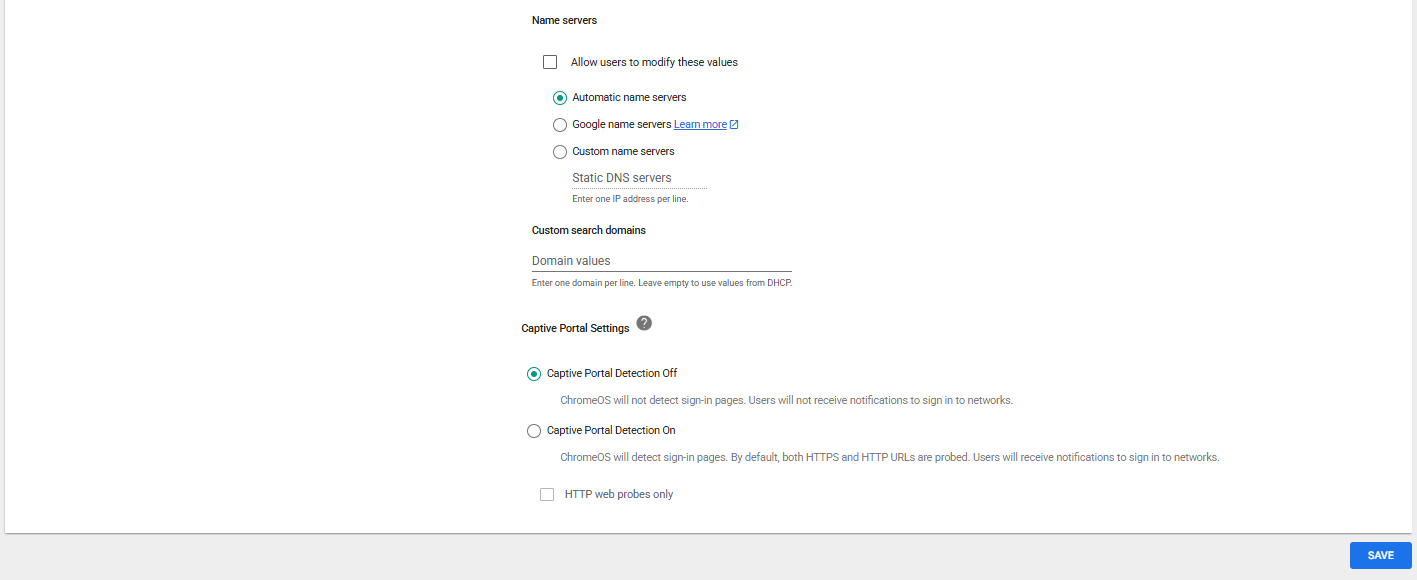
Direct Internet Connection - Name Servers:
Automatic Name Servers - Click Save.
- Name:
Assign the Wi-Fi profile to the same device organizational unit as the device-based certificate provisioning profile.
Note: The SSID is case-sensitive and must exactly match the SSID configured on the access point or wireless controller.
Option A: Device-Based Wi-Fi Profile
Option B: User-Based Wi-Fi Profile
Use this configuration with the user-based certificate provisioning profile.
- Click Add Wi-Fi.
- Select Chromebooks (by User).
- Configure the following settings:
- Name:
"Your SSID"-Foxpass-Device - Network:
"Your SSID" - SSID: Enter the SSID exactly as configured on your wireless network.
- Automatically Connect: Enabled
- Security Type:
WPA/WPA2/WPA3 Enterprise (802.1X) - Extensible Authentication Protocol:
EAP-TLS - Maximum TLS Version:
1.2 - Username:
${LOGIN_EMAIL} - Server Certificate Authority: Select
Foxpass Server CA. - Provisioning Type:
Certificate profile - Certificate Profile: Select
Foxpass Chromebook SCEP - User. - Proxy Type:
Direct Internet Connection - Name Servers:
Automatic Name Servers - Click Save.
- Name:
Assign the Wi-Fi profile to the same organizational unit or user group as the user-based certificate provisioning profile.
Note: The user must sign in to the Chromebook before the user-based certificate can be requested and used for Wi-Fi authentication.
Step 7: Add Connector to Foxpass Console
-
Add Connector by going to the Foxpass Console> RADIUS > SCEP.
-
Click Add Certificate Connector
-
Google Workspace Customer ID – Retrieve Customer ID from Google Admin > Account > Account Settings page.
-
Click ‘Create’

Google Customer ID
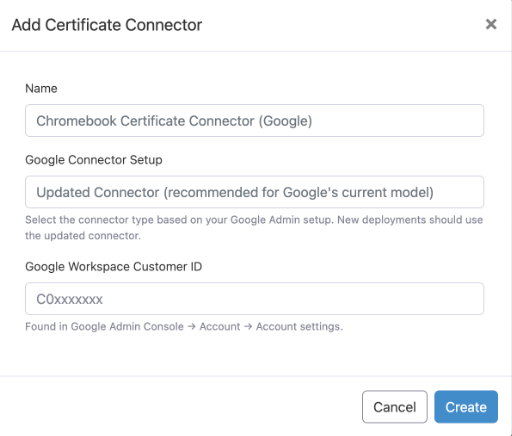
Add Certificate Connector in Foxpass
Chromebook Login
If the settings and configuration of the profiles are correct, you will be automatically connected to your Wi-Fi.
- To review certificates, go to chrome://certificate-manager in Google Chrome.
- Next to the request that contains the name of the SCEP profile that you just set up, click More. You can visually see the progress of getting the certificate if it hasn’t already completed.
- The new issued Certificate will also show up under Client certificates section of the PKI > Network Certificates in Foxpass Console.
Updated 22 days ago