
EAP-TLS - Initial setup
First time setup on EAP-TLS page
This guide tells you the one time set up for Foxpass in order to use MDM's like Apple configurator, JAMF etc. Make sure you have our Advanced RADIUS add-on enabled for your account.
Download Client CA
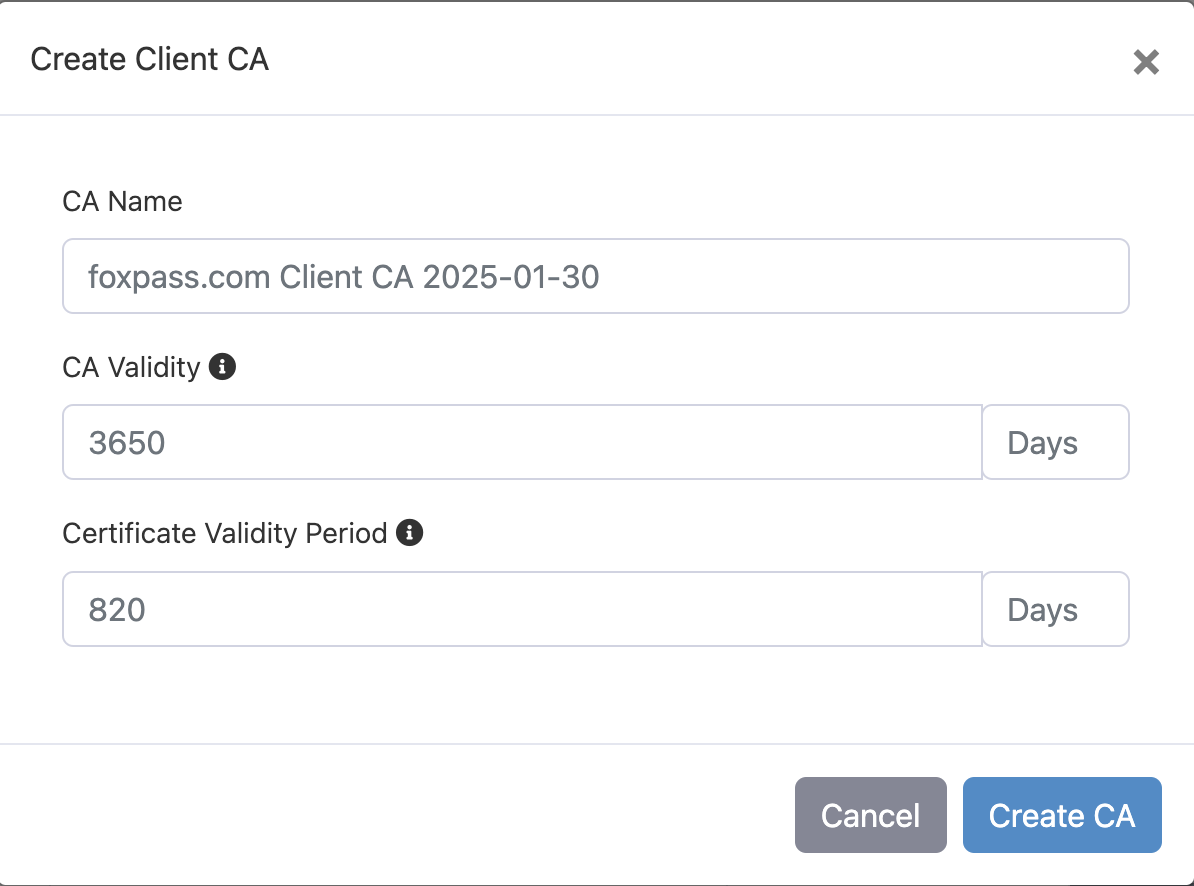
- Go to the Foxpass PKI > Network Certificates page. Click on Create new CA button under 'Client Certificate Authorities'.

- Edit CA name, CA validity and Certificate Validity Period if desired.
- Click 'Create CA' button.
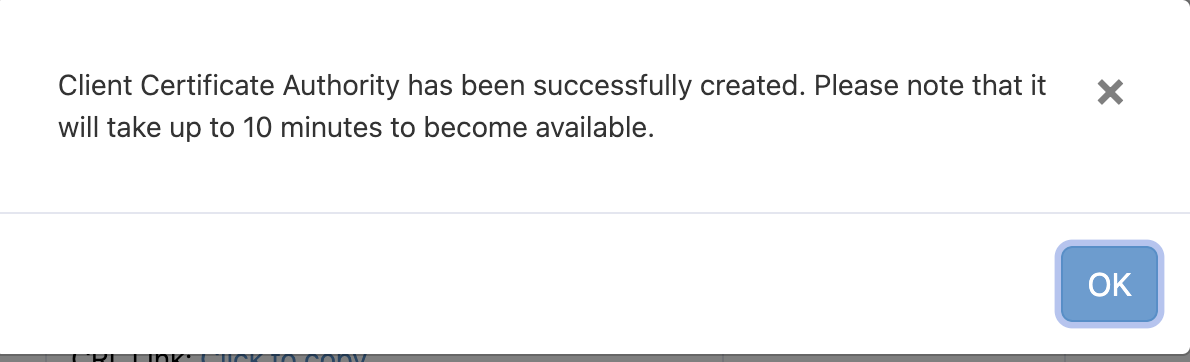
Click on 'Download CA' button. The CA can be used later in setting configuration files for MDM.
Download Server CA
Go to the RADIUS > EAP-TLS page. Click on Create new Server CA under 'Server Certificate Authorities'. You will see a dialog box saying that 'Server Certificate Authority has been successfully created.'

Now click on 'Create certificate' and then 'Set as Active'.

Click on 'Download CA' button. The CA can be used later in setting configuration files for MDM.
Configure SCEP Endpoint
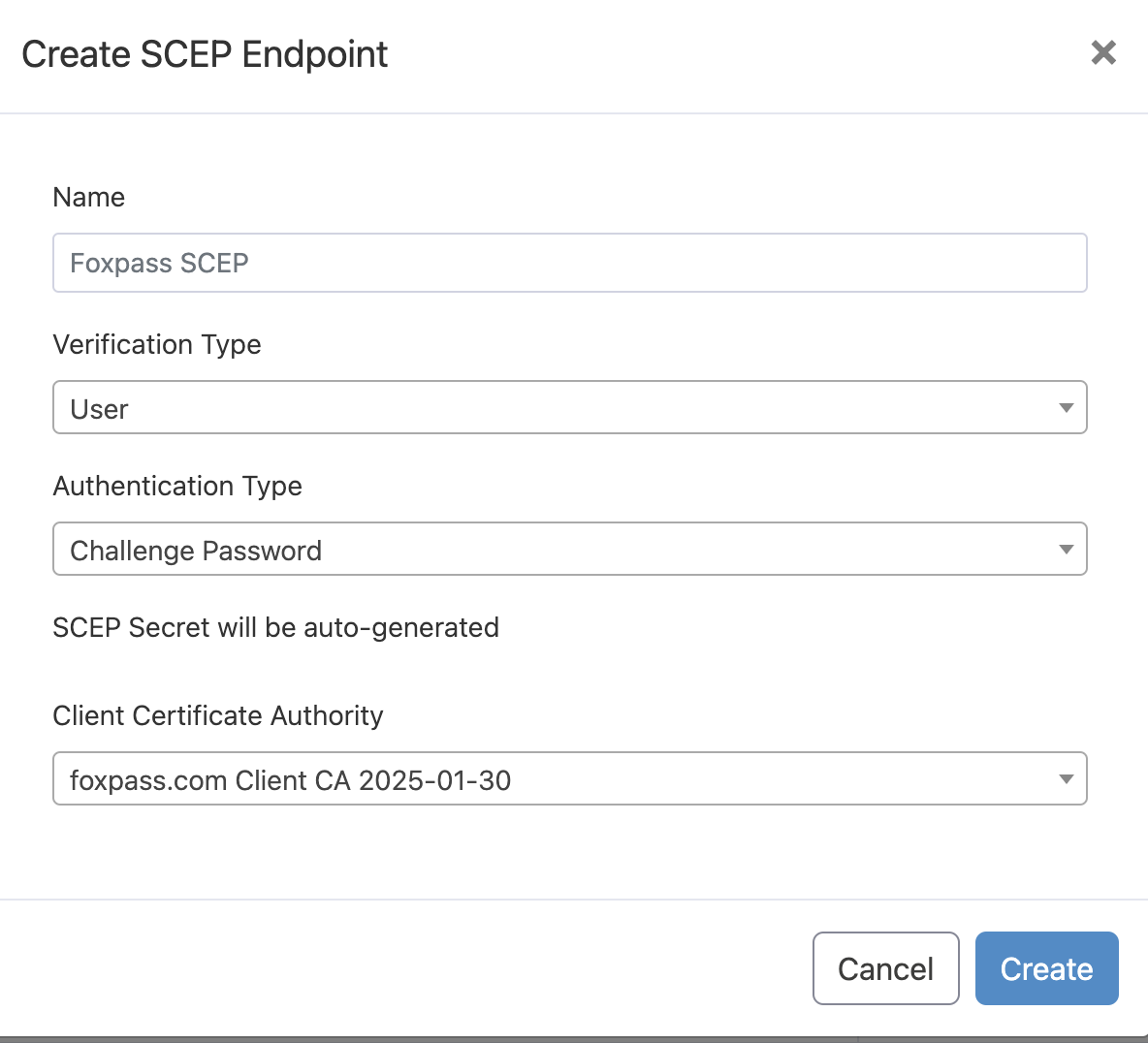
You can create a SCEP endpoint with Verification Type as User or Device or None depending on your requirement. For MDM's like Apple configurator, JAMF etc you will need to configure Authentication Type as 'Challenge Password' and for Microsoft Entra ID authentication type as 'Microsoft Entra ID'. You can choose verification type as user, device or None depending on your use case.
Authentication Type : Challenge Password
Option 1: User certificate
- Go to the PKI > Certificate Enrollment on Foxpass.
- Click 'Create SCEP endpoint' button.
- Name - < Your choice>
- Verification Type: User
- Authentication Type: Challenge Password
- Client Certificate Authority: Select the client CA created earlier.
Option 2: Device certificate
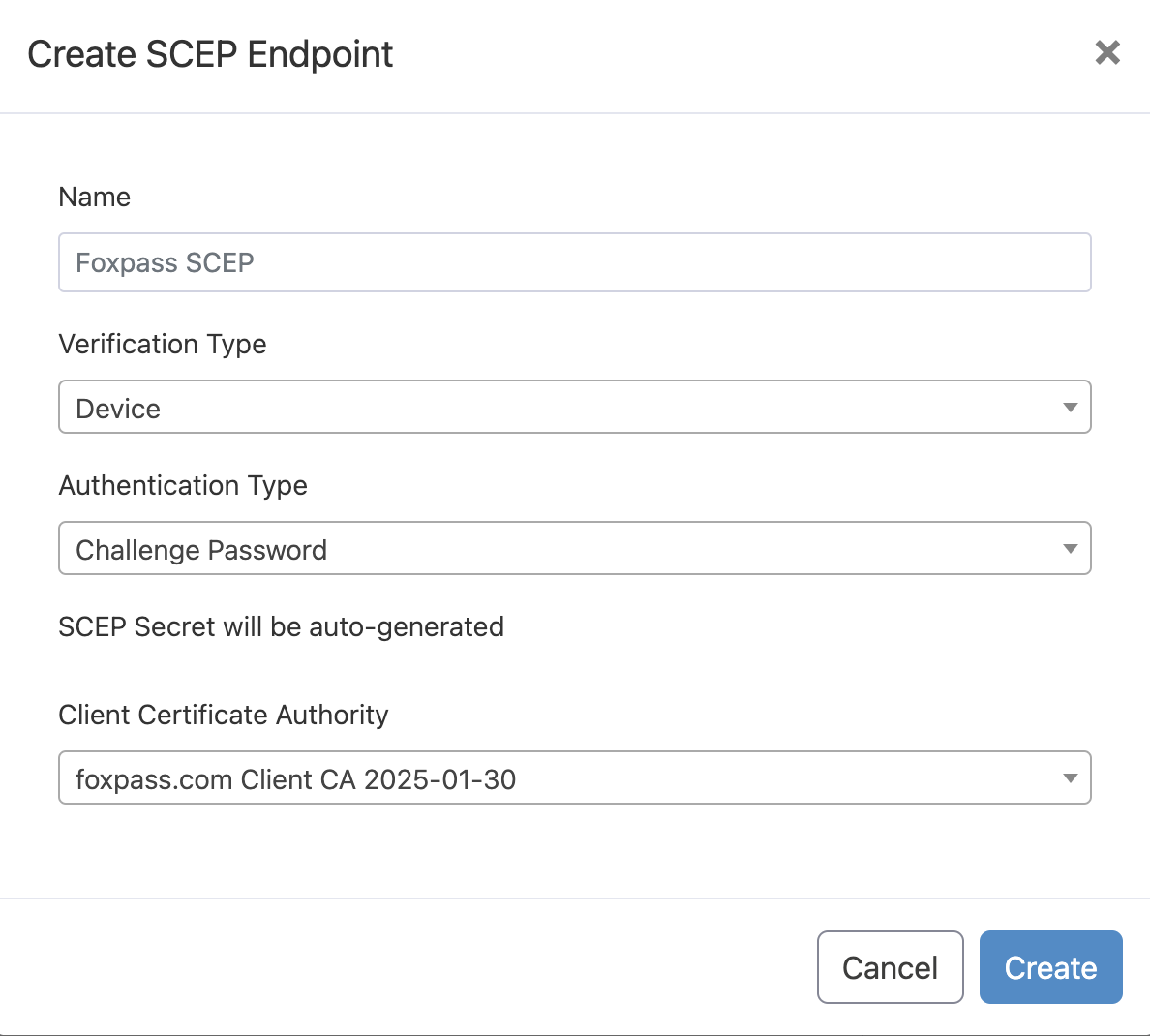
Choose 'None' for verification type if you don't want to verify whether it is device or a user certificate.
Authentication Type : Microsoft Entra ID
Option 1: User certificate
- Name - Give a name to your endpoint.
- Verification type - User
- Authentication type = 'Microsoft Entra ID'
- Azure Tenant ID - Paste the Tenant ID copied from Azure. Refer Intune Initial Setup documentation for the respective values.
- Azure Client ID - Paste the Client ID copied from Azure
- Azure app client secret - Paste the secret copied from Azure
- Click 'Create' button.
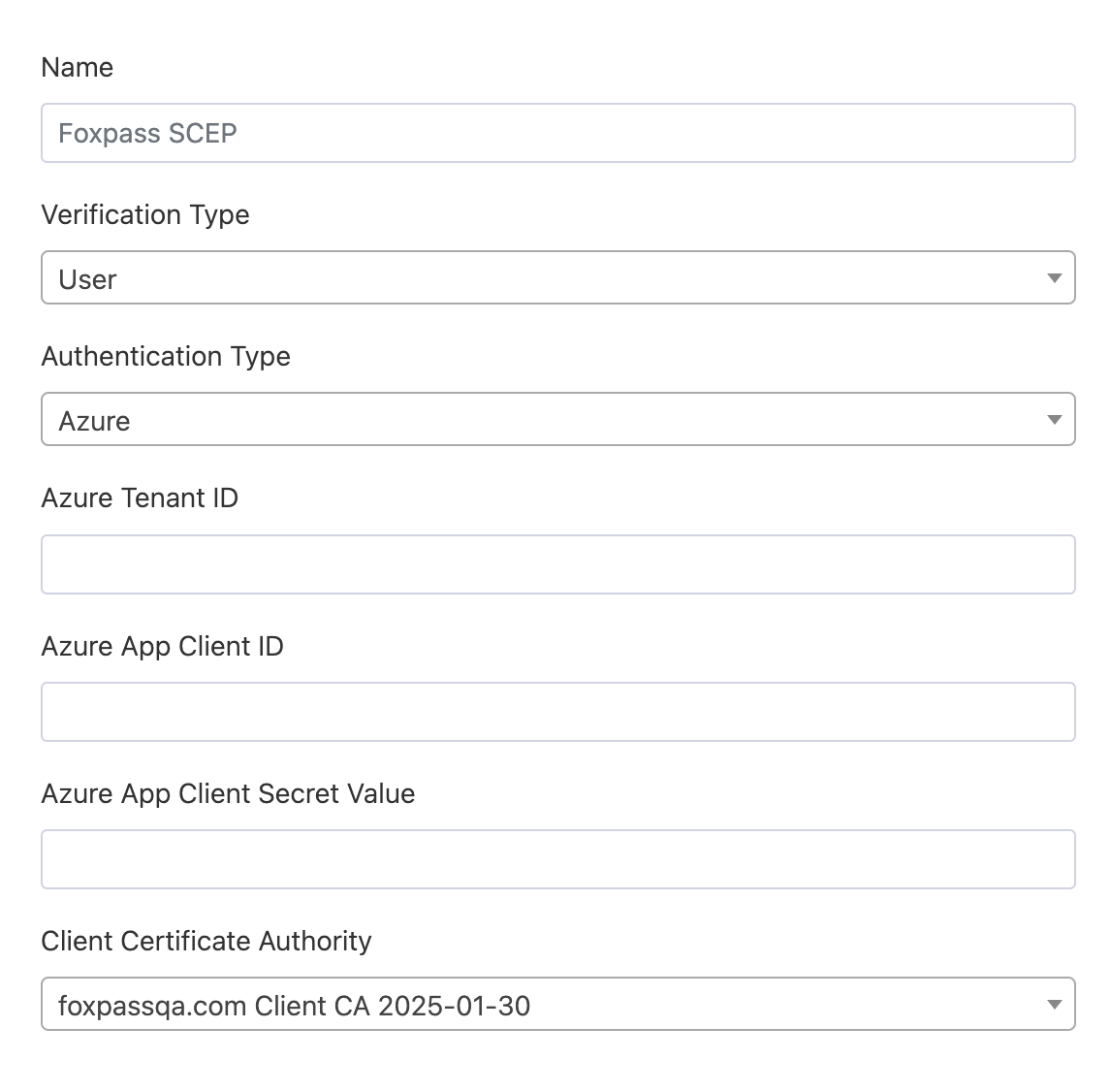
Authentication Type : Microsoft Entra ID
Option 2: Device certificate
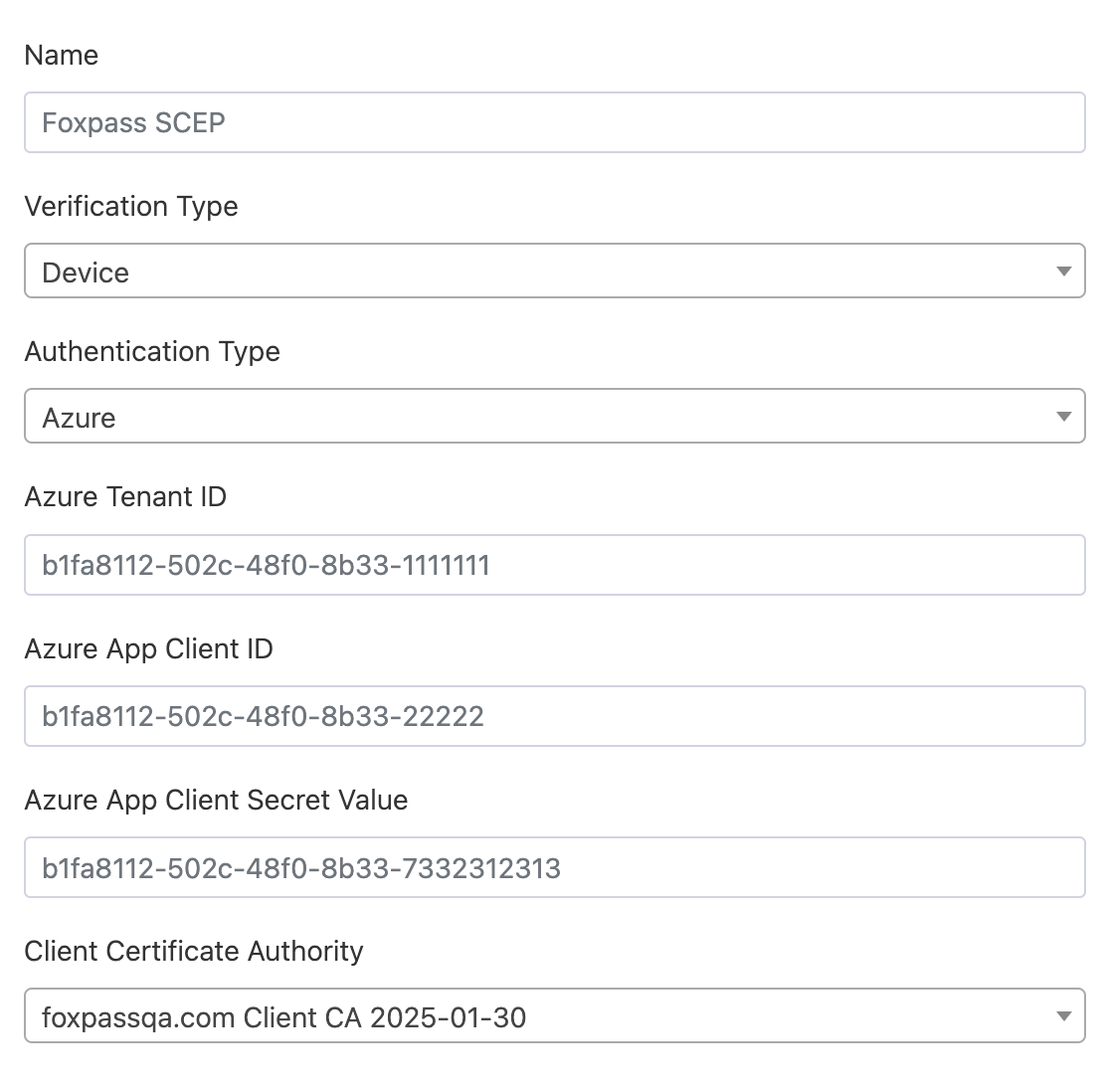
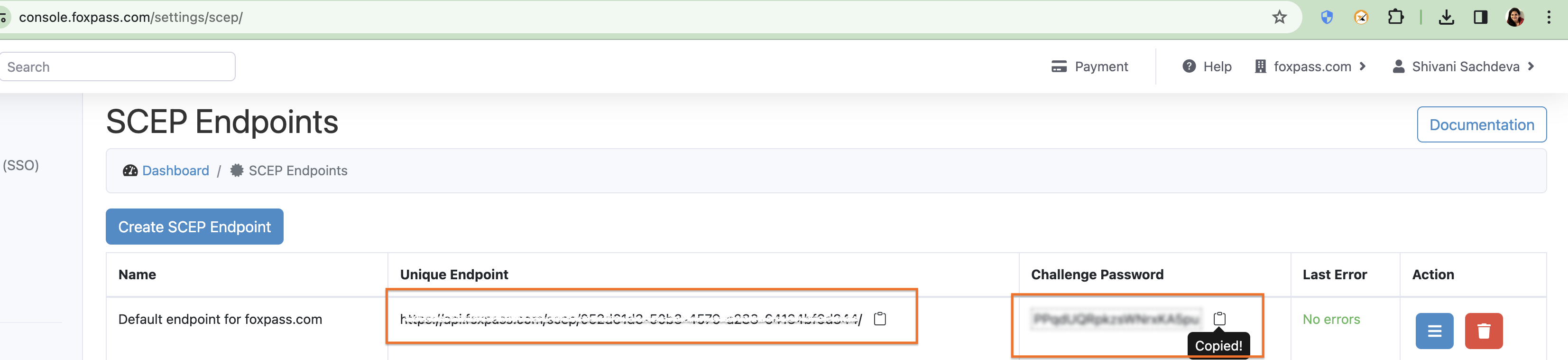
Once the SCEP endpoint is created, note the unique endpoint and challenge password. You will need it while configuring MDM's.
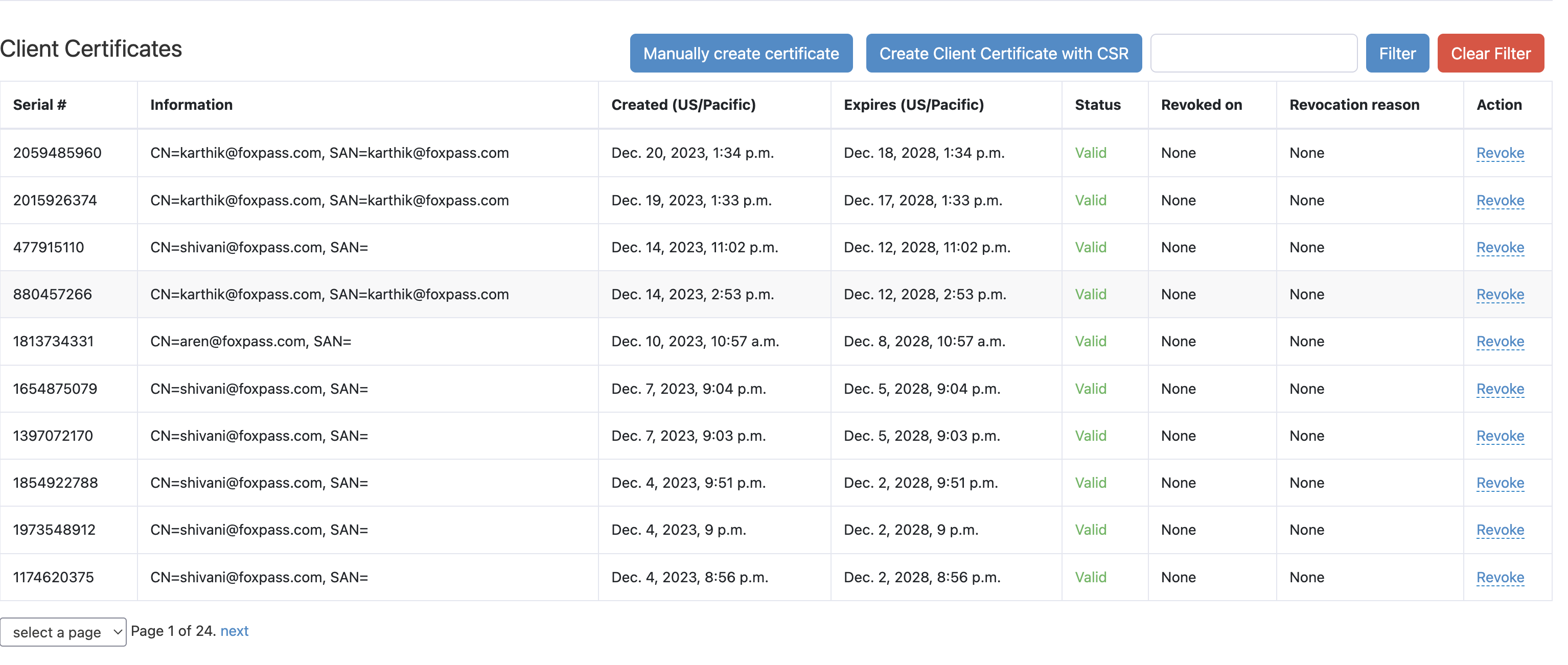
Certificate listing and revocation
The Foxpass Console's Network Certificates lists all your issued certificates along with their serial, information, status, issue, and expiry date. You can revoke a certificate by selecting a valid reason.
Please see the section to your left for various MDM's documentations.
Updated 3 months ago