
Addigy Device Sync
Foxpass can sync macOS device inventory from Addigy. The synchronized inventory can be used for device-aware access control in Foxpass.
Prerequisites
Before starting, make sure you have:
- Administrator access to your Addigy organization
- Administrator access to the Foxpass Console
- An Addigy API key using API v2
- Your Addigy Organization ID, if you want to sync devices from a specific organization and its descendant organizations
Step 1: Create an Addigy API key
Sign in to the Addigy Console.
- Navigate to Account > Integrations.
- Create an API v2 key.
- Copy the API key and store it securely. You will enter it in Foxpass.
Step 2: Connect Addigy to Foxpass
Sign in to the Foxpass Console.
- Navigate to Directory > Device Sync.
- Find Addigy and click Connect.
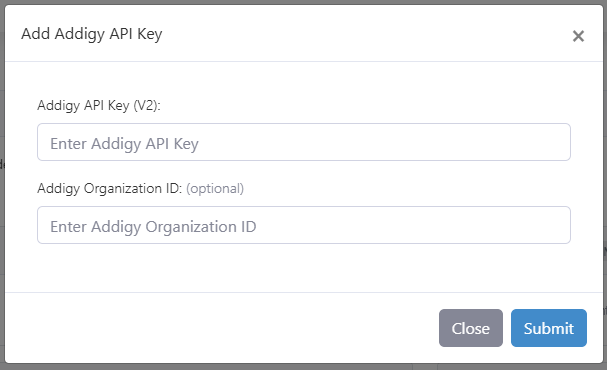
Connect Addigy to Foxpass
- Enter the following information:
- Addigy API Key (V2): Enter the API key created in Addigy.
- Addigy Organization ID: Optional.
Enter an Organization ID to sync devices belonging to that organization and its descendant organizations. - Click Submit.
Foxpass will connect to Addigy and begin importing the available device inventory.
Step 3: Verify the device sync
After the sync completes:
- Return to Directory > Device Sync.
- Confirm that Addigy shows as Connected and that the sync status is healthy.
- Review the Devices table and confirm that the expected devices appear with Addigy as their source.
Device sync behavior
Keep the following behavior in mind:
- Foxpass uses the device UDID as its unique identifier.
- Devices without a UDID are skipped and will not appear in Foxpass.
- Foxpass uses the Addigy device name when available. If no device name is available, it creates a name using the device serial number or agent ID.
- The device’s most recent audit date is used as its last-login timestamp.
- Devices returned by Addigy are synchronized as active.
- If a previously synchronized device is no longer returned by Addigy, it is removed from the Foxpass device inventory.
Updated 20 days ago